Free online image to prompt generator

Free Image to Prompt Generator

Upload any image and turn it into a detailed, copy-ready prompt for your favorite AI image generator.

  • JPG, PNG and WebP
  • Prompts written in English
  • Free credits available daily
Image to Prompt
English prompt · 1 credit per result

Drop an image here

Click to browse or paste from your clipboard

JPG, PNG or WebP · Up to 10 MB

Image to prompt example

A real image-to-prompt result

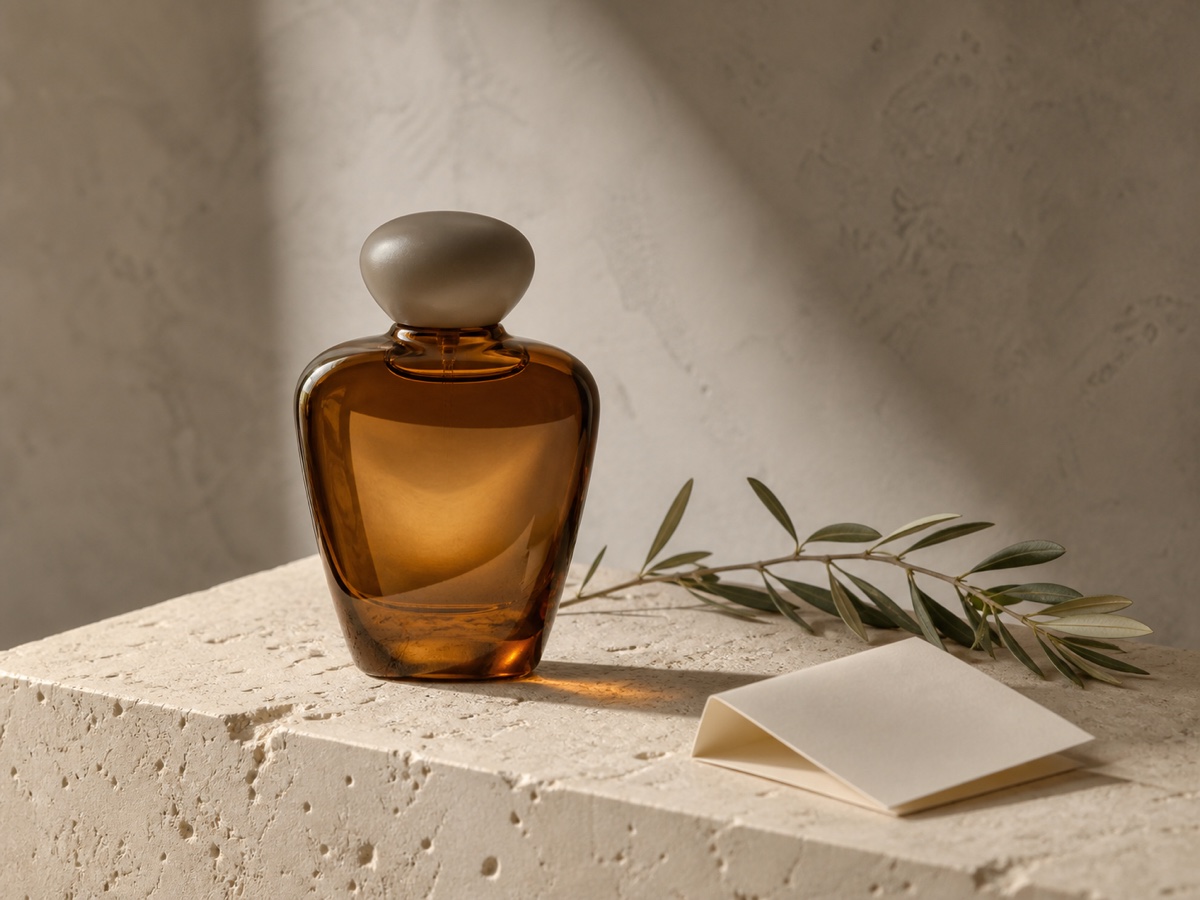
Compare the original image with the prompt generated by VisuCue. The result captures the subject, composition, lighting, colors, materials and camera viewpoint in reusable text.

Still-life reference image with an amber perfume bottle, olive branch and folded card

Amber Perfume Bottle on Stone Plinth

A warm, minimalist still life centers on a rounded amber glass perfume bottle placed on a rough pale stone block. An olive branch and a folded cream card balance the composition against a softly textured neutral wall.

Main prompt
A refined still-life photograph of a single unbranded perfume bottle made from translucent deep amber-brown glass, centered slightly left on a large pale porous stone plinth. The bottle has a broad rounded rectangular body with softly curved shoulders, a thick glass base, a short neck, and a smooth matte taupe pebble-shaped stopper. A slender olive branch lies diagonally behind and to the right of the bottle, with narrow muted green leaves extending toward the right edge. In the lower-right foreground, place a small folded blank cream card or paper tent. Frame the scene at close range from a slightly elevated eye-level angle, with the plinth filling the lower portion and a softly mottled beige plaster wall behind. Use warm directional sunlight from the upper left, producing a bright diagonal area on the wall, amber internal glow and reflections in the bottle, and long soft-edged shadows across the stone. Palette of warm ivory, sand, taupe, dark amber, and olive green; understated luxury editorial product photography with tactile natural materials.
Composition
Bottle positioned slightly left of center on a large stone plinth, Olive branch runs diagonally behind the bottle toward the right side, Folded paper card occupies the lower-right foreground, Neutral plaster wall provides broad uncluttered background space, Plinth top and front face create strong horizontal depth layers
Lighting
Warm directional light enters from the upper left, Bright softly defined diagonal light patch on the background wall, Long soft-edged shadows extend to the right across the stone surface, Amber glass shows internal highlights, dark edges, and warm transmitted glow
Color palette
Warm ivory and pale limestone, Beige and taupe, Deep amber brown, Muted olive green, Soft cream
Camera
Close still-life framing, Slightly elevated near eye-level viewpoint, Moderate depth of field with soft background detail, Natural perspective with the stone plinth front edge cropped by the frame
Aspect ratio
4:3

What does image to prompt extract?

Each result includes one complete prompt plus the visual details you may want to edit before generating a new image.

Subject and scene

The main subject, visible objects, actions, setting, materials and relationships between elements.

Composition

Framing, camera angle, subject placement, depth, negative space and suggested aspect ratio.

Lighting and color

Light direction, softness, contrast, dominant colors, color temperature and overall mood.

Camera cues

Visible lens feel, viewpoint, focus, depth of field and photographic treatment without invented settings.

Style and medium

Photography, illustration, anime, 3D or graphic-design traits described in reusable language.

Main and negative prompts

A copy-ready main prompt, a relevant negative prompt and separate details that remain easy to edit.

How to convert an image to a prompt

Upload an image, generate its prompt, then copy and edit the result for your next creation.

Upload

Upload

Choose, drag or paste a JPG, PNG or WebP, or import a CORS-enabled HTTPS image URL.

Generate

Generate prompt

Choose English output, then select Generate prompt to analyze the image and create a detailed result.

Copy

Copy

Copy the main prompt, adjust any subject or visual detail, and use it with your preferred image model.

Convert any image into a prompt

Use photos, illustrations, anime art, product images, posters, logos, UI screenshots, 3D renders, architecture, film stills and other visual references. VisuCue turns the visible content into a prompt you can copy and refine.

Photos and real-world scenes

Portraits, travel, architecture, interiors, products, food and everyday photography.

Illustration and character art

Anime, concept art, picture-book scenes, line art, game characters and environment design.

Graphic and interface design

Posters, packaging, logos, brand visuals, websites and app interface screenshots.

3D and composite images

3D renders, material references, film frames, collages and other digital artwork.

Image to prompt FAQ

Answers to the most common questions about converting images into prompts for AI image generators.

What is an image to prompt generator?

An image to prompt generator analyzes the visible content of an image and writes a detailed text prompt describing its subject, scene, composition, lighting, colors and visual style. You can copy that prompt into an AI image generator or edit it for a new direction.

How do I convert an image to a prompt?

Upload or paste a JPG, PNG or WebP image, select Generate prompt, then copy the result. You can edit the subject, composition, lighting or style before using it in an image generator.

What image formats are supported?

VisuCue accepts JPG, PNG and WebP images up to 10 MB. You can choose a file, drag it into the upload area, paste it from the clipboard or import a compatible HTTPS image URL.

Which AI image generators can use the prompt?

Use the general prompt with most text-to-image tools, or open the dedicated GPT Image, FLUX, Midjourney and Stable Diffusion pages to generate wording tailored to those models.

How can I get a more accurate image prompt?

Use an image where the subject and important visual details are easy to see. After generation, review names, visible text and small details, then edit the prompt so it matches the result you want to create.

Is my uploaded image stored?

VisuCue does not keep the original or processed image. It is sent for analysis only after you select Generate prompt. Your generated text can be saved in prompt history and deleted from your account.

How many image prompts can I generate with free credits?

Each successful image-to-prompt generation uses 1 credit. Daily check-in adds up to 3 credits, and the free credit balance is capped at 10 credits.